ghost系统windows10怎么安装微软正版windows10

 时间:2026-02-13 09:56:50

1、把浏览器打开。

ghost系统windows10怎么安装微软正版windows10

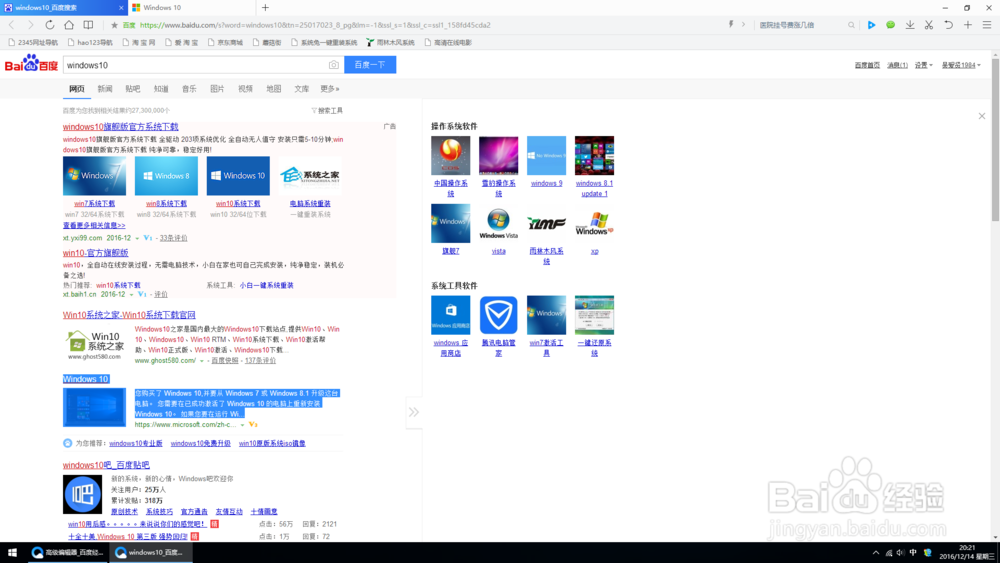
2、百度搜索windows10。

ghost系统windows10怎么安装微软正版windows10

3、点击windows10(是蓝色的),进入下载windows10界面。

ghost系统windows10怎么安装微软正版windows10

ghost系统windows10怎么安装微软正版windows10

4、点击立即下载工具,下载好。

ghost系统windows10怎么安装微软正版windows10

ghost系统windows10怎么安装微软正版windows10

ghost系统windows10怎么安装微软正版windows10

ghost系统windows10怎么安装微软正版windows10

5、打开工具。

ghost系统windows10怎么安装微软正版windows10

6、接受许可条款。

ghost系统windows10怎么安装微软正版windows10

7、选择为另一台电脑创建安装介质,下一步。

ghost系统windows10怎么安装微软正版windows10

8、选择要安装的版本,下一步。

ghost系统windows10怎么安装微软正版windows10

9、选择ISO文件,下一步。

ghost系统windows10怎么安装微软正版windows10

10、选择ISO文件存放位置,放在一个分区根目录上。

ghost系统windows10怎么安装微软正版windows10

11、正在下载windows10。

ghost系统windows10怎么安装微软正版windows10

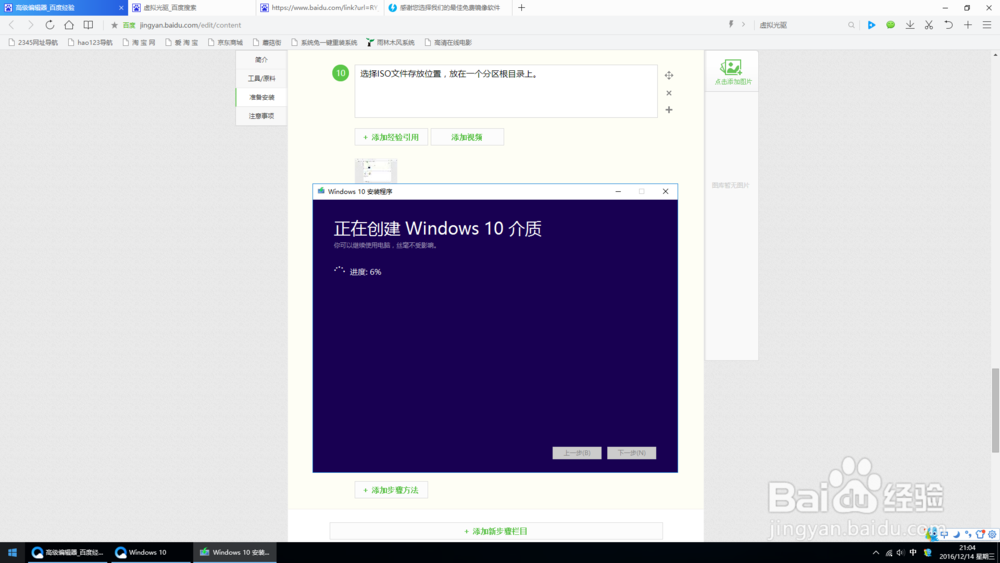
12、正在创建安装介质(也就是我们选择的ISO文件)。

ghost系统windows10怎么安装微软正版windows10

13、把ISO文件录到DVD,不要录直接点完成。不能录!

ghost系统windows10怎么安装微软正版windows10

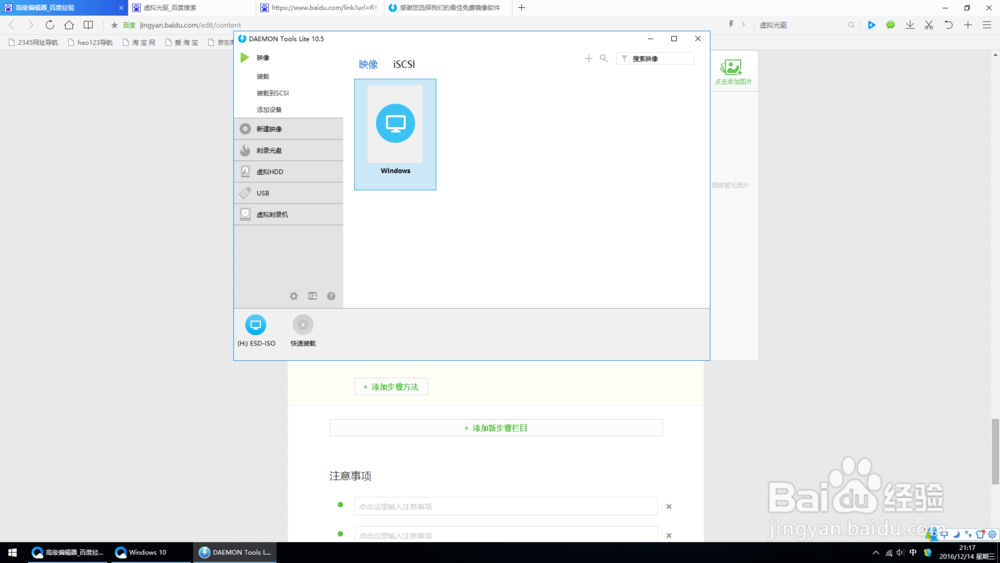
1、打开虚拟光驱。

ghost系统windows10怎么安装微软正版windows10

2、点击映像边上的+号。

ghost系统windows10怎么安装微软正版windows10

3、打开页面出来,找到刚才制作的ISO文件并双击。

ghost系统windows10怎么安装微软正版windows10

ghost系统windows10怎么安装微软正版windows10

4、双击映像下面的一个文件。

ghost系统windows10怎么安装微软正版windows10

ghost系统windows10怎么安装微软正版windows10

5、到此电脑会发现多了一个光驱,右键点击打开这个光驱。

ghost系统windows10怎么安装微软正版windows10

ghost系统windows10怎么安装微软正版windows10

ghost系统windows10怎么安装微软正版windows10

6、点击setup.exe打开windows10安装程序。

ghost系统windows10怎么安装微软正版windows10

7、点击不是现在,下一步。

ghost系统windows10怎么安装微软正版windows10

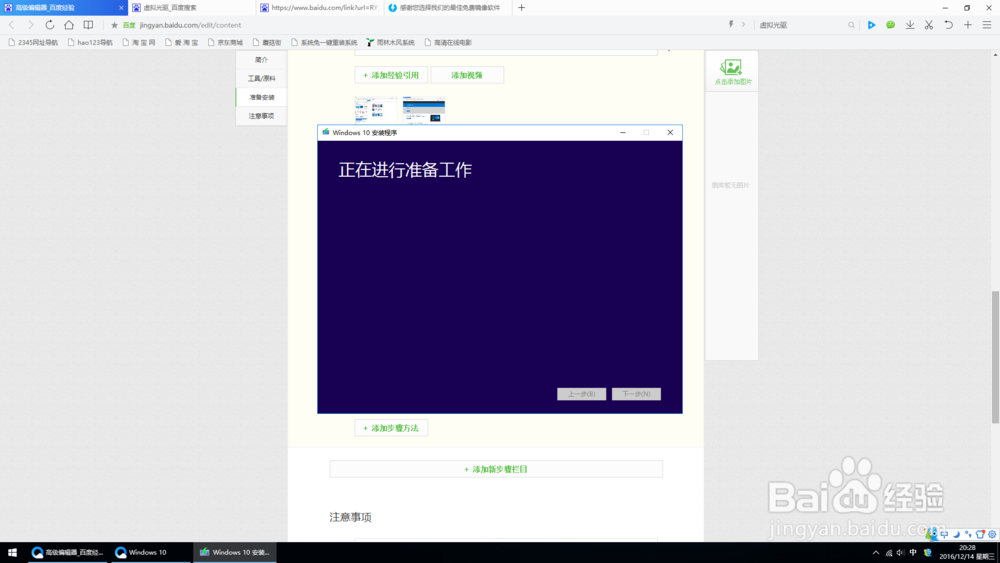
8、我们正在进行准备工作。

ghost系统windows10怎么安装微软正版windows10

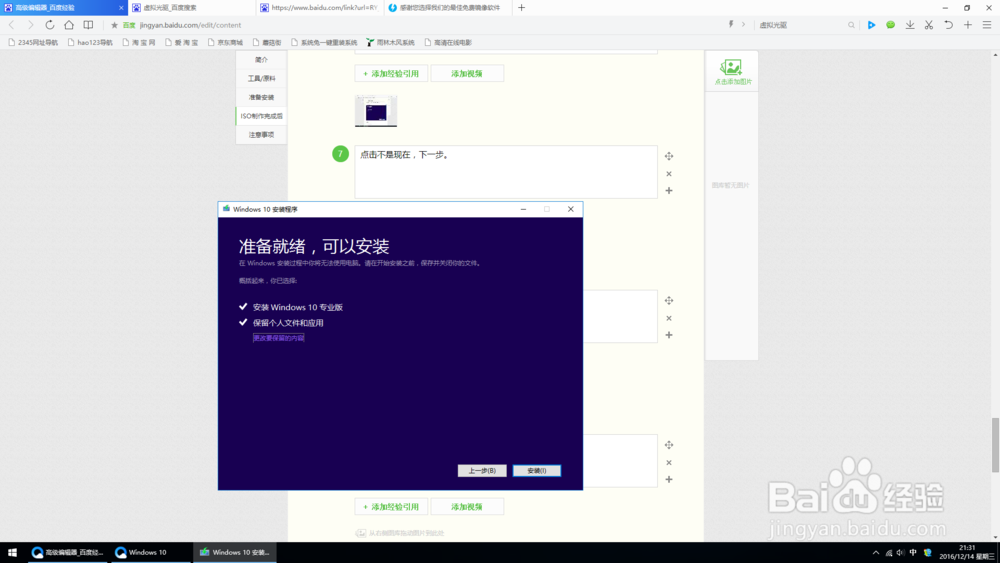
9、点安装就可以了。

ghost系统windows10怎么安装微软正版windows10

  • 如何解决win10的网络疑难杂症?
  • 硬盘如何加速
  • 如何挑选毛巾?
  • 浅析笔记本的隐藏分区
  • 硬盘坏道合坏道常见检测修复方法
  • 热门搜索
    爱好旅游打一成语迷底是 唐山旅游景点大全 河南旅游年票 黄山旅游景点 江西旅游地图 医疗旅游 巴中旅游 墨西哥旅游 三亚南山文化旅游区 埃及旅游攻略