windows 安装 Git 教程

 时间:2026-02-12 22:55:43

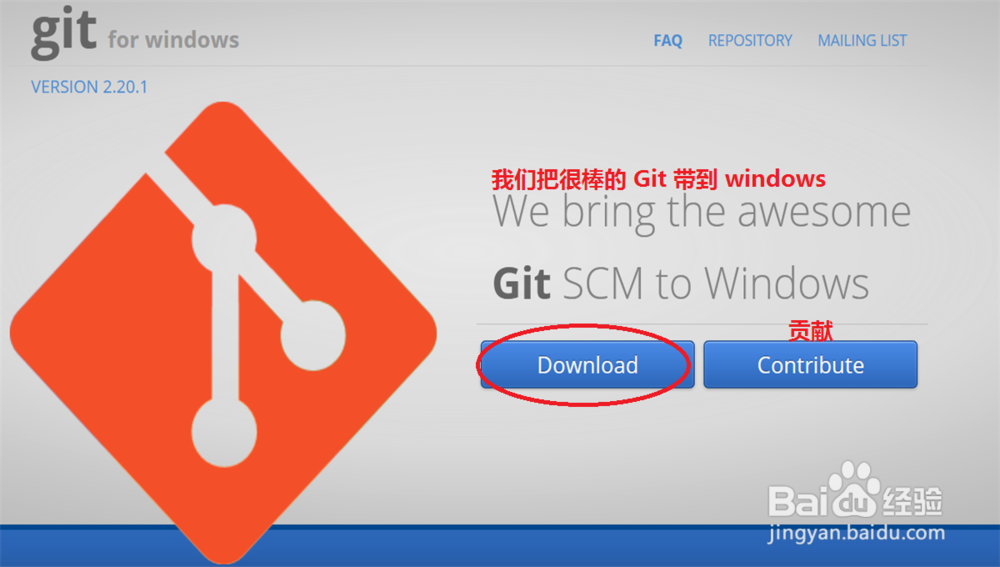
1、打开浏览器在搜索栏里面输入:‍https://gitforwindows.org/ 进入 git 官网地址进行下载
windows 安装 Git 教程

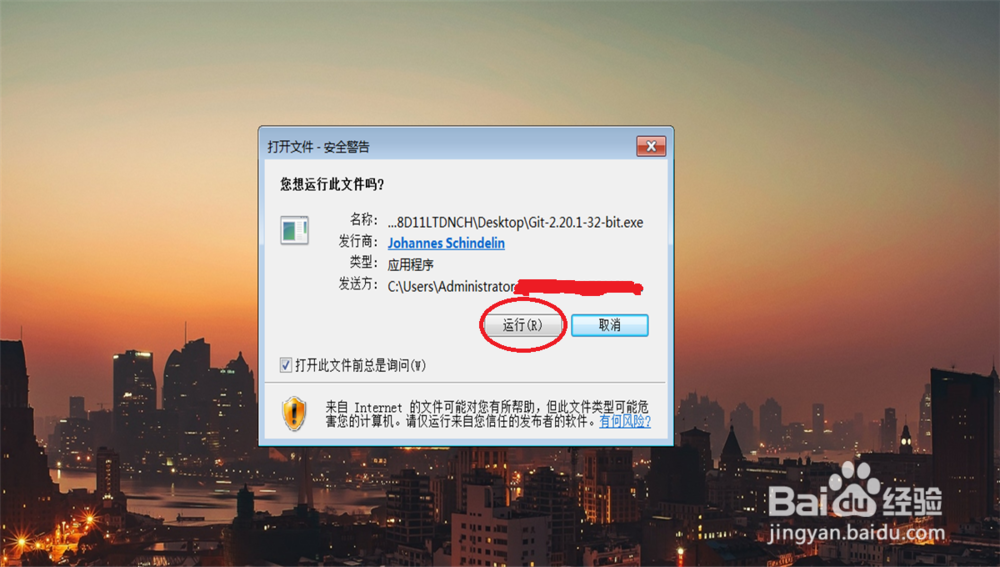
2、双击打开下载好的 git.exe 点击:运行

windows 安装 Git 教程

3、点击: Next

windows 安装 Git 教程

4、选择默认目录或自定义安装目录来安装 git 之后点击: Next

windows 安装 Git 教程

5、点击: Next

windows 安装 Git 教程

6、点击: Next

windows 安装 Git 教程

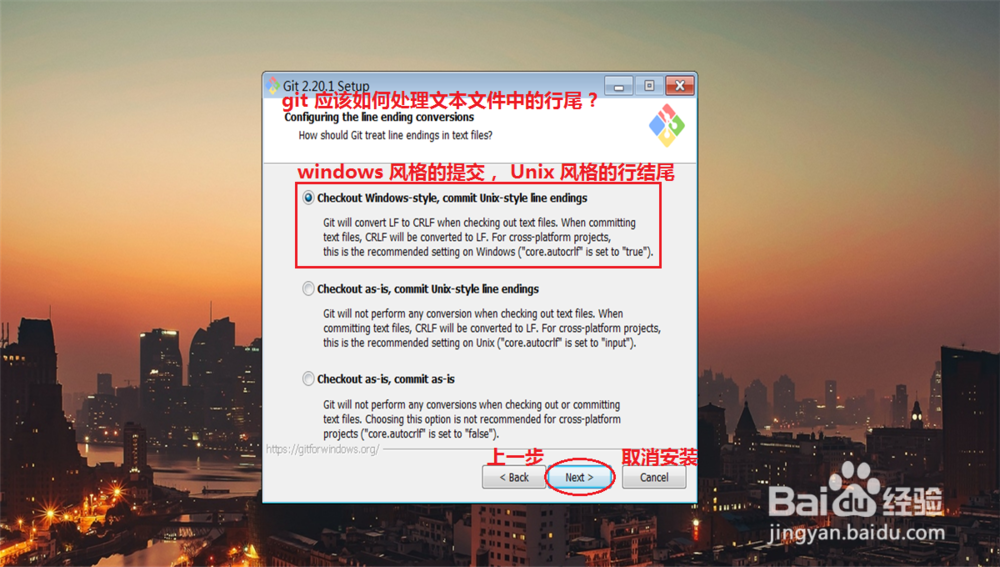
7、如果不喜欢 vim 作为 git 默认编译器, 可以选择其他的编译器, 之后点击: Next

windows 安装 Git 教程

8、点击: Next

windows 安装 Git 教程

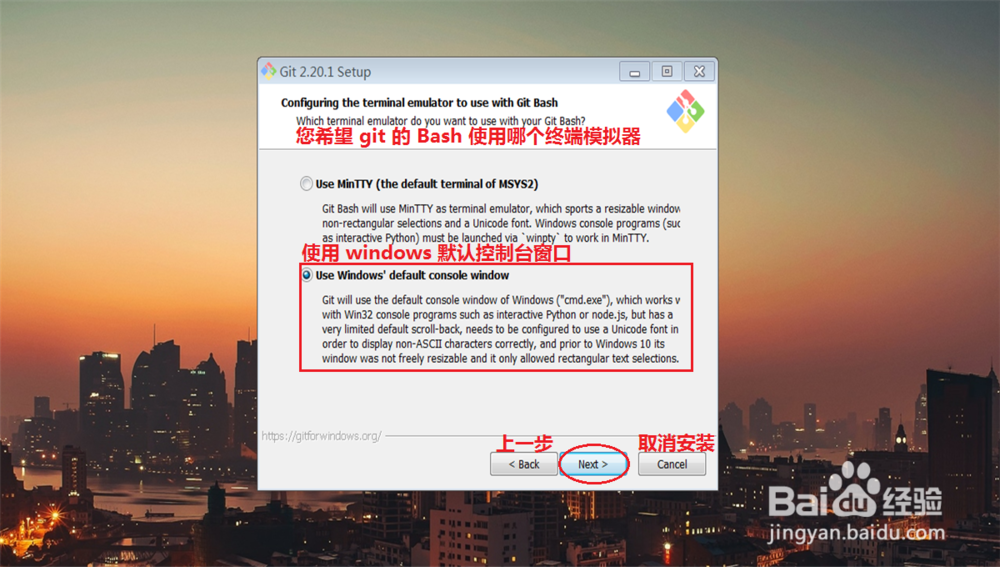
9、点击: Next

windows 安装 Git 教程

10、点击: Next

windows 安装 Git 教程

11、点击: Next

windows 安装 Git 教程

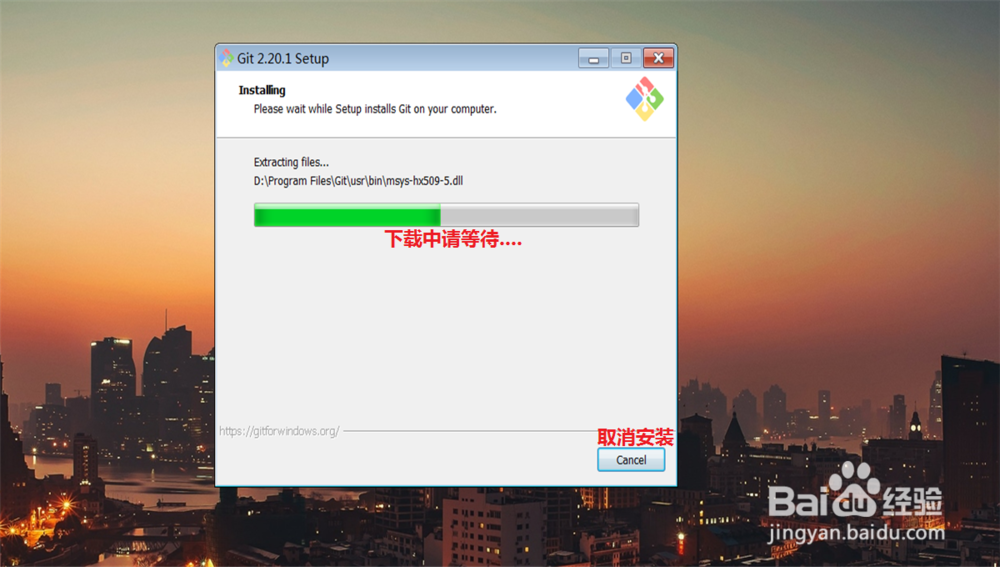
12、点击: Install

windows 安装 Git 教程

windows 安装 Git 教程

13、点击: Finish

windows 安装 Git 教程

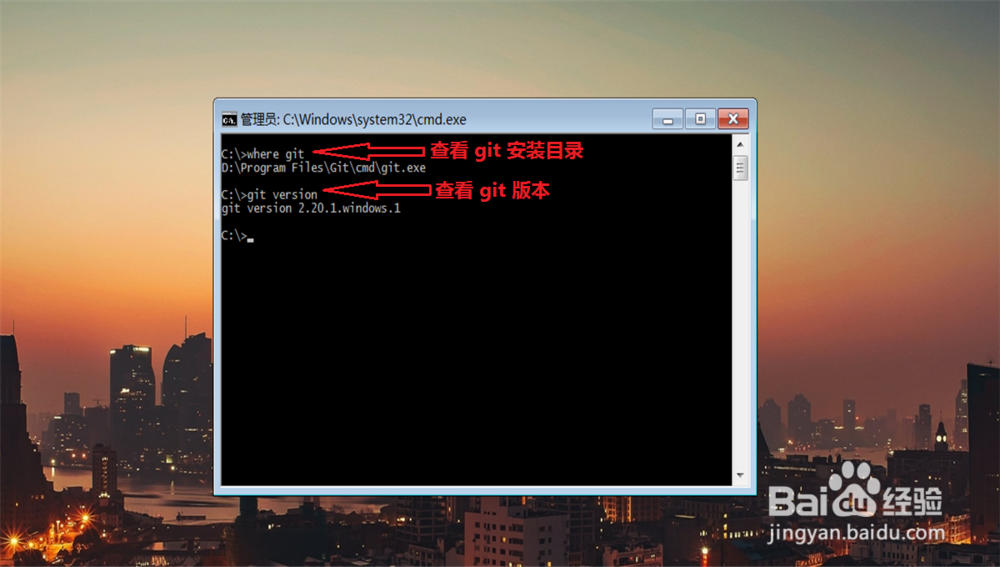
14、使用快捷键 win + r 打开 windows 应用程序, 输入 cmd 来查看 git 是否安装成功,

cmd 里面输入:

                           where git 查看 git 的安装路径

                           git version 查看 git 版本
windows 安装 Git 教程

windows 安装 Git 教程

  • 企业如何做好数据定时、实时自动备份?
  • 无法进行windows备份
  • 妖精的尾巴蓝狮怎么加点
  • 10个Windows神技能
  • 怎么查看酷我音乐的版本
  • 热门搜索
    陕西省旅游学校 北京密云旅游景点 苏州旅游网 秦皇岛旅游地图 鼓浪屿旅游攻略自由行 丰宁坝上草原旅游攻略 北京旅游局官网 刘家峡旅游攻略 南京旅游报价 元旦旅游