WPS office word文档如何设置分栏

 时间:2026-02-12 22:05:06

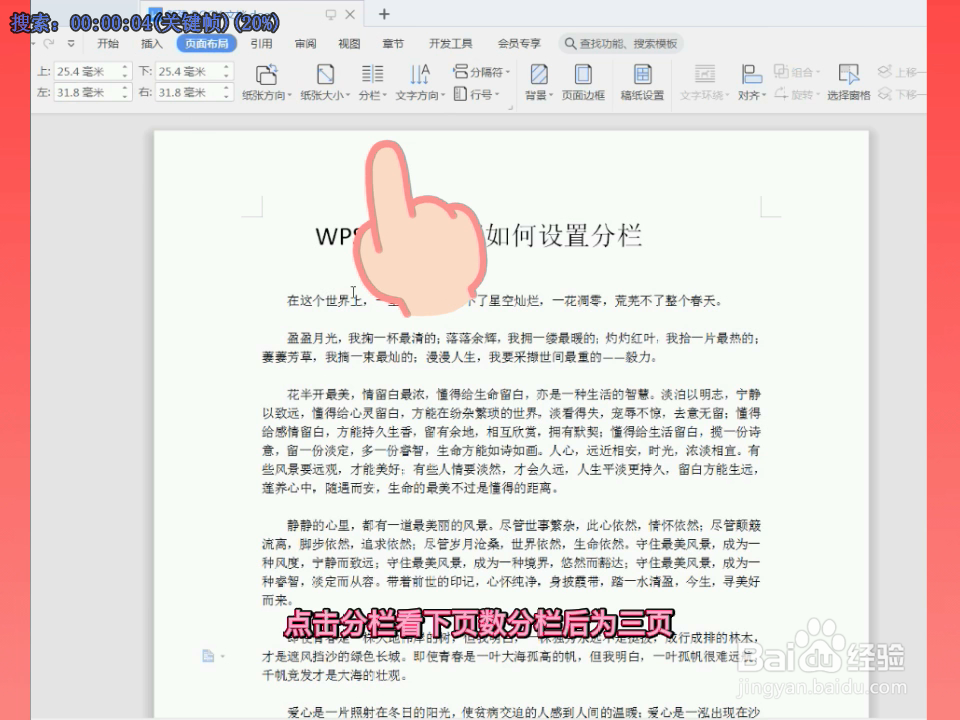
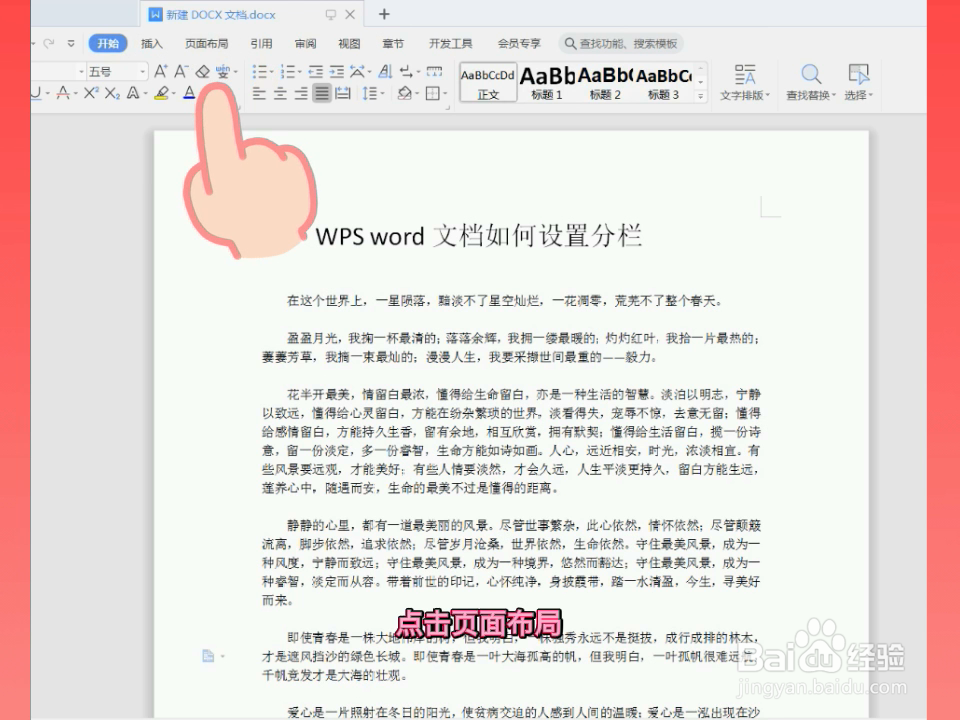
1、点击“开始”,点击“页面布局”

WPS office word文档如何设置分栏

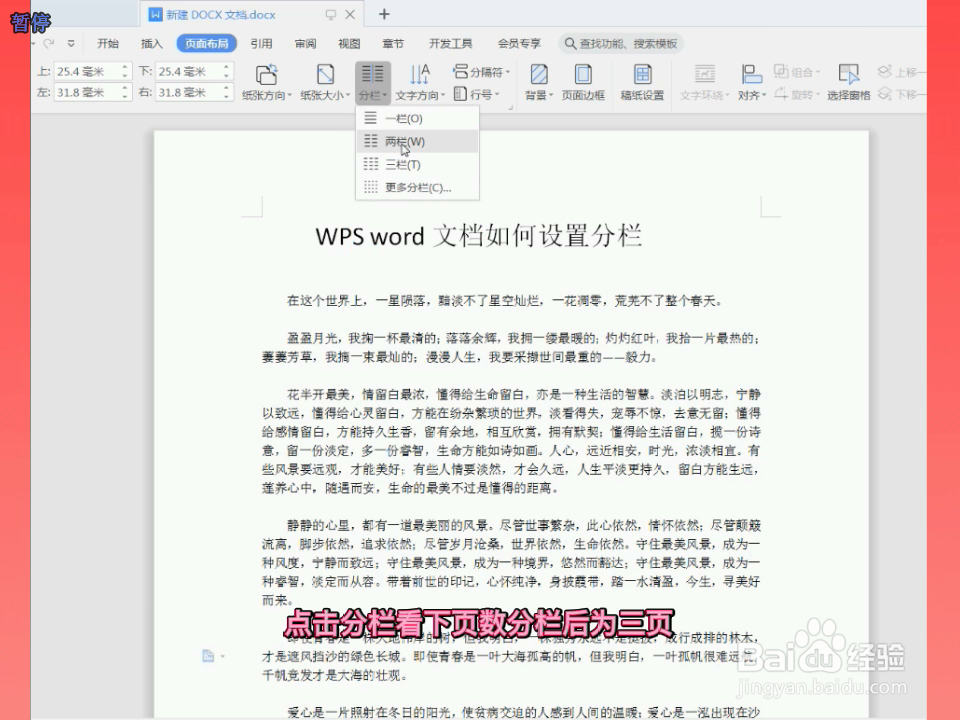
2、点击“分栏”

WPS office word文档如何设置分栏

WPS office word文档如何设置分栏

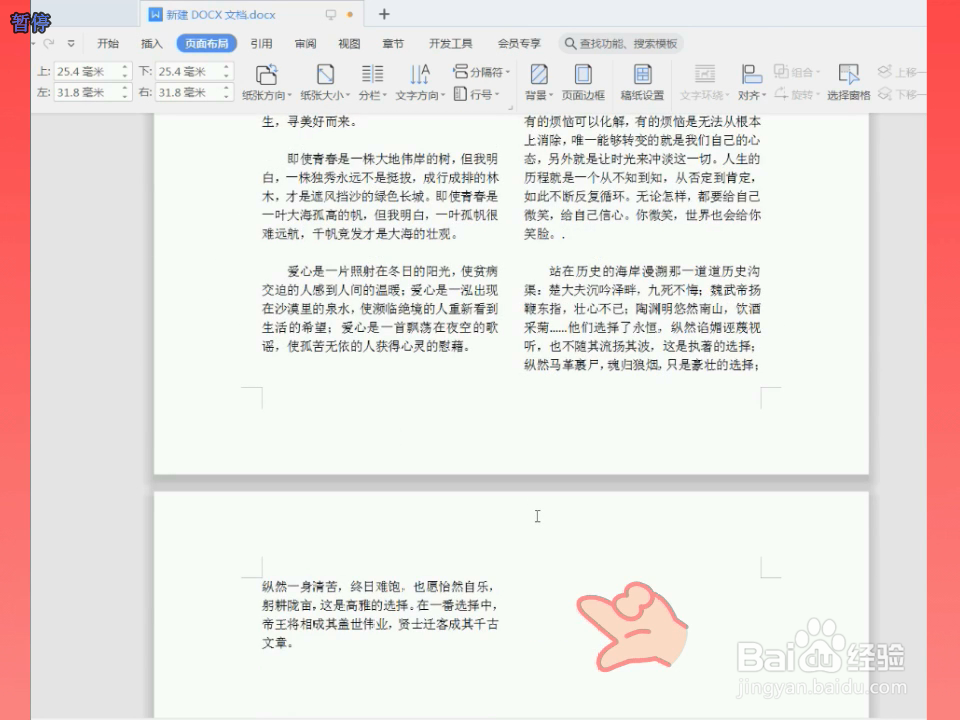
3、看下页数,分栏后为3页

WPS office word文档如何设置分栏

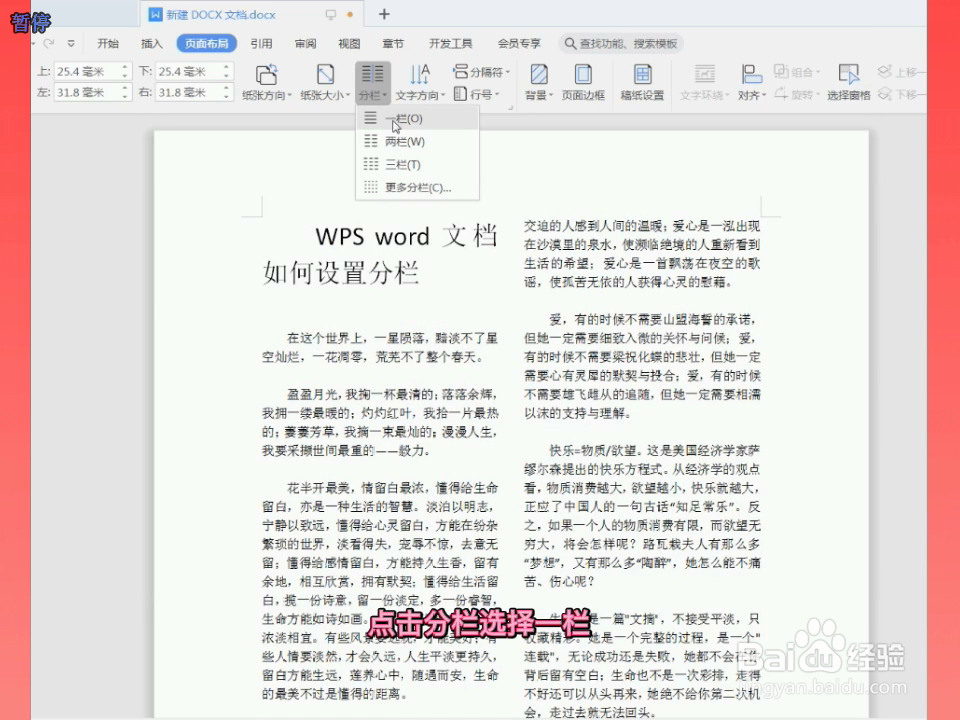
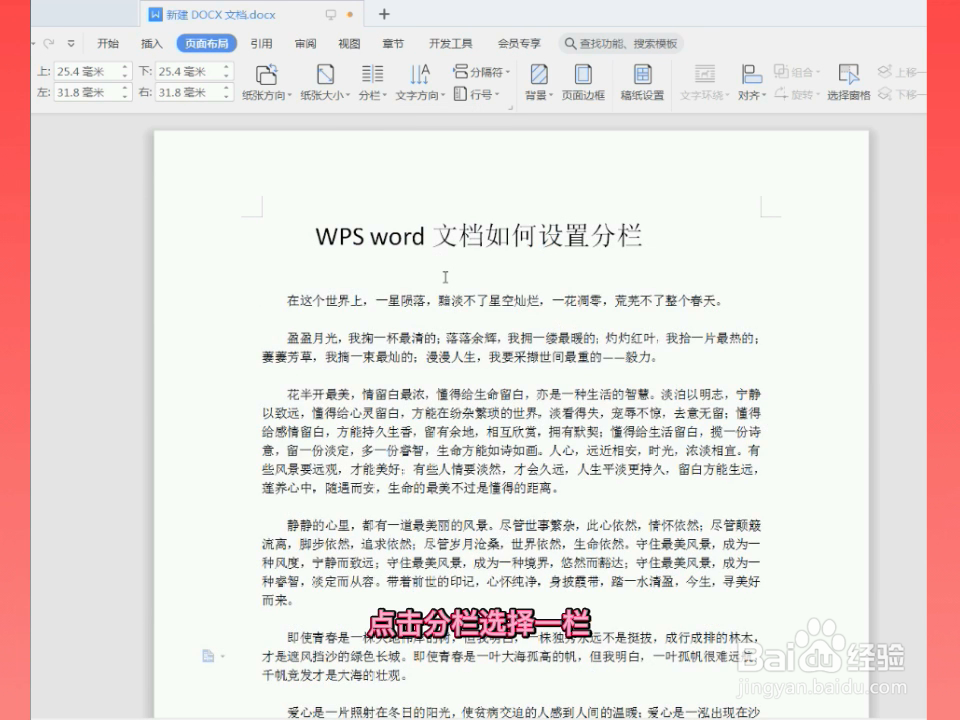
4、点击“分栏”,选择“一栏”

WPS office word文档如何设置分栏

WPS office word文档如何设置分栏

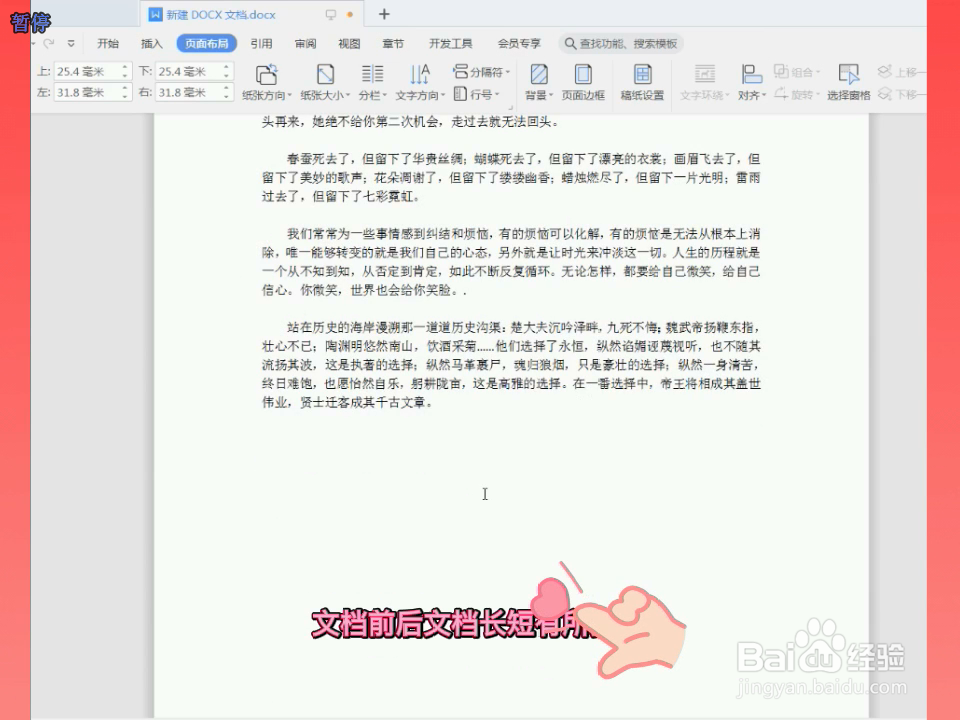
5、看下分栏前的页数。分栏前后,文档长短有所变动

WPS office word文档如何设置分栏

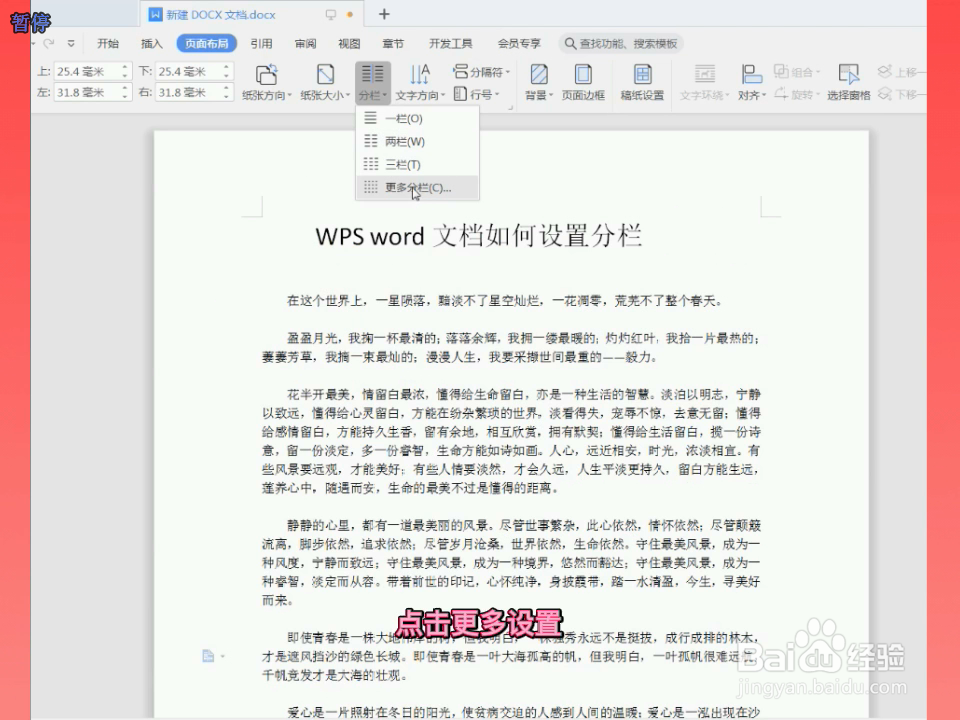
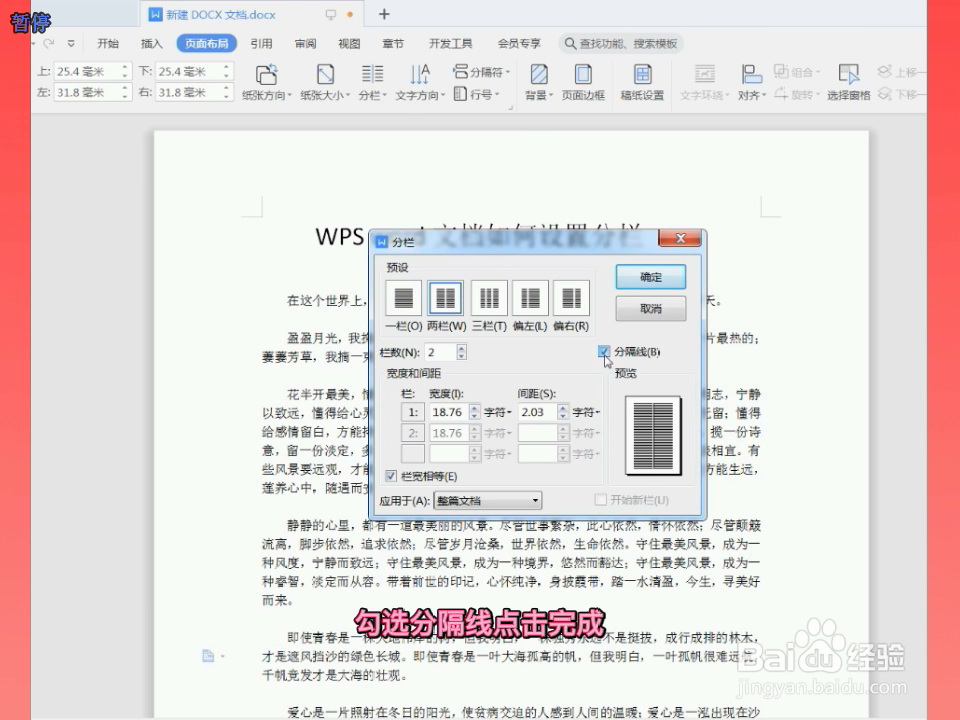
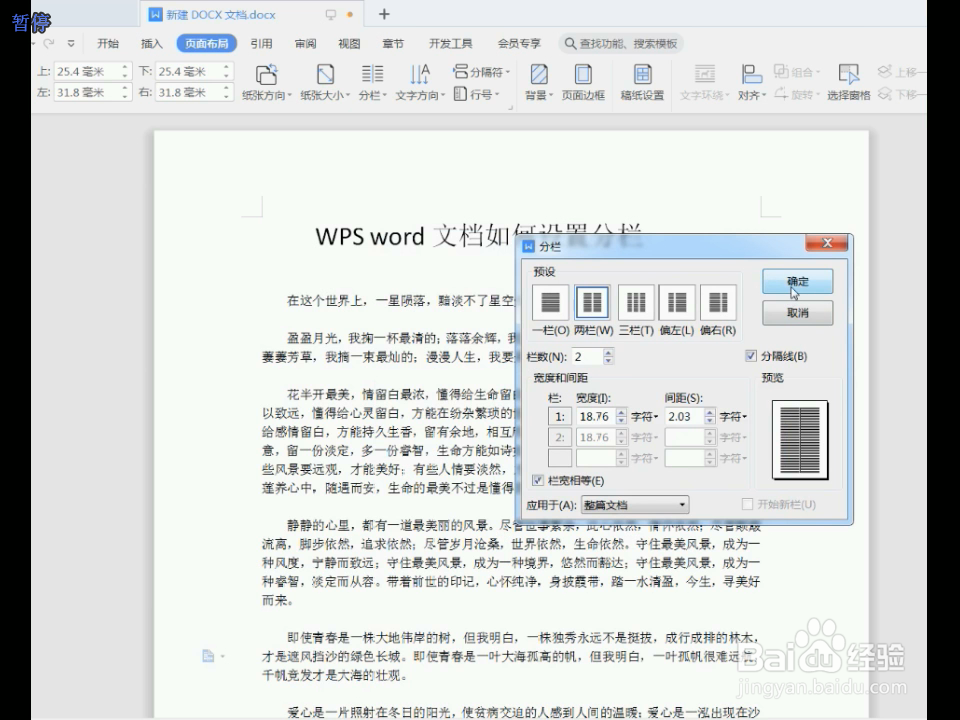
6、如何在分栏里加竖线

点击分栏,点击更多分栏

WPS office word文档如何设置分栏

7、勾选分隔线。确定后完成。

WPS office word文档如何设置分栏

WPS office word文档如何设置分栏

  • WPS文档图片环绕方式怎么设置
  • 在WPS文档中如何将文字环绕在图片周围?
  • WPS文字中如何设置文字环绕图片
  • wps图片环绕工具不见了怎么办
  • wps怎么设置图片环绕方式
  • 热门搜索
    去杭州旅游攻略 虚拟旅游网站 湖南株洲旅游 杭州旅游景点介绍 辽宁兴城旅游 两会旅游 鹰潭旅游景点大全 高邮旅游景点 出国旅游去哪好 浙江的旅游景点